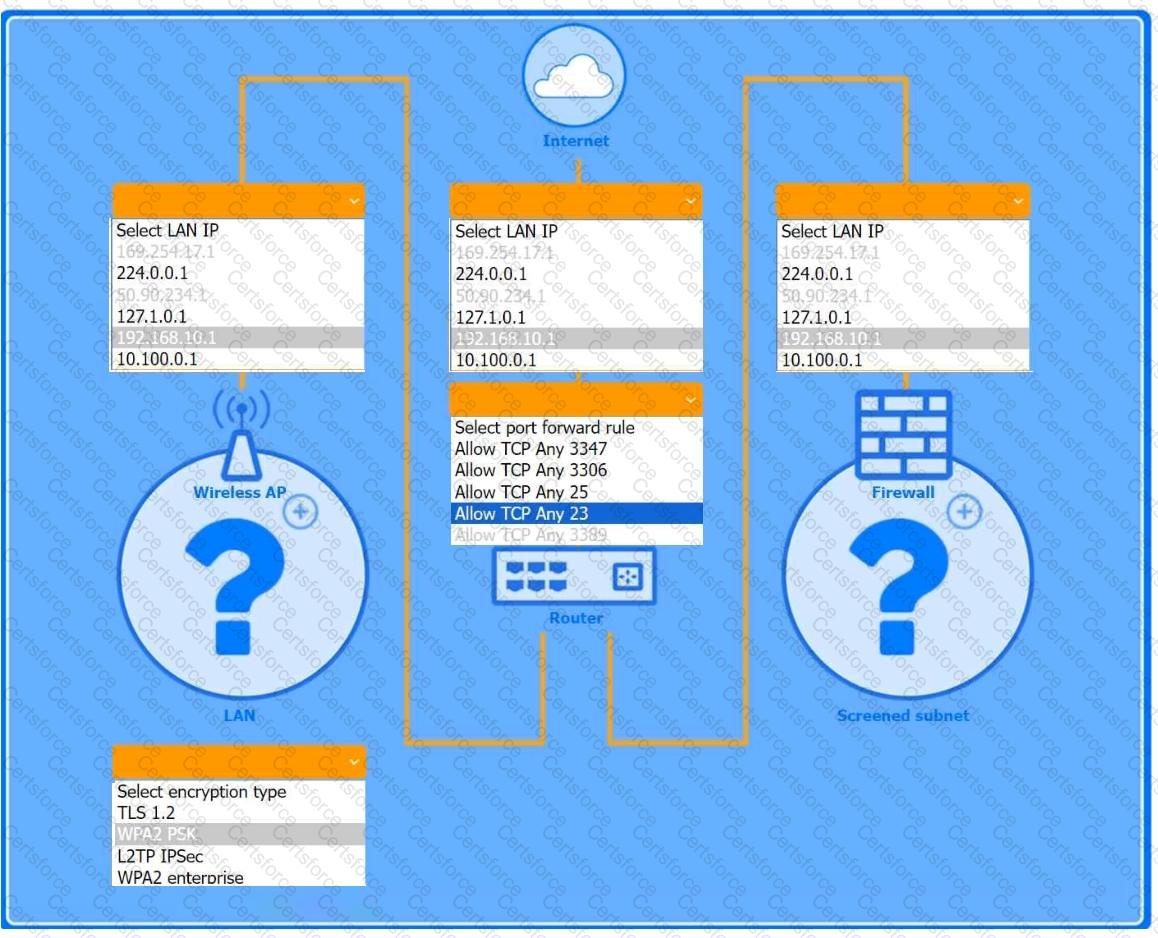
The completed configuration:
1. Wireless AP (LAN side)
1. LAN IP: 192.168.10.1
2. Encryption: WPA2 PSK
2. Router (port-forward rule)
1. Allow TCP Any 3389
This forwards inbound RDP traffic (TCP/3389) from the Internet to the Windows PC, enabling Remote Desktop access.
3. Firewall (screened subnet side)
1. LAN IP: 10.100.0.1
4. Device placement
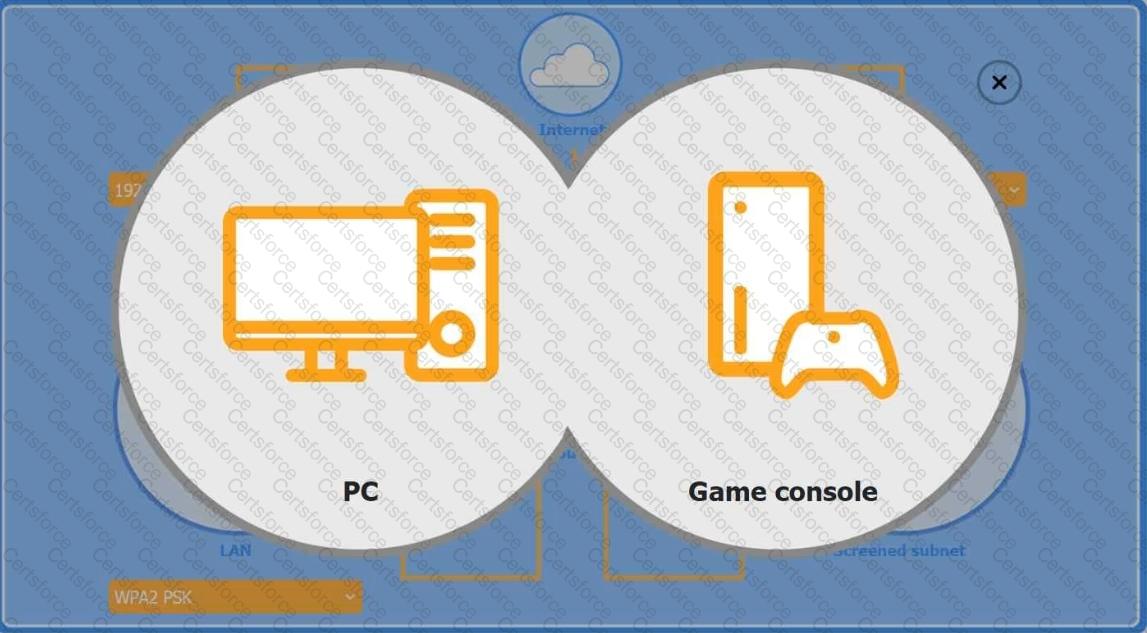
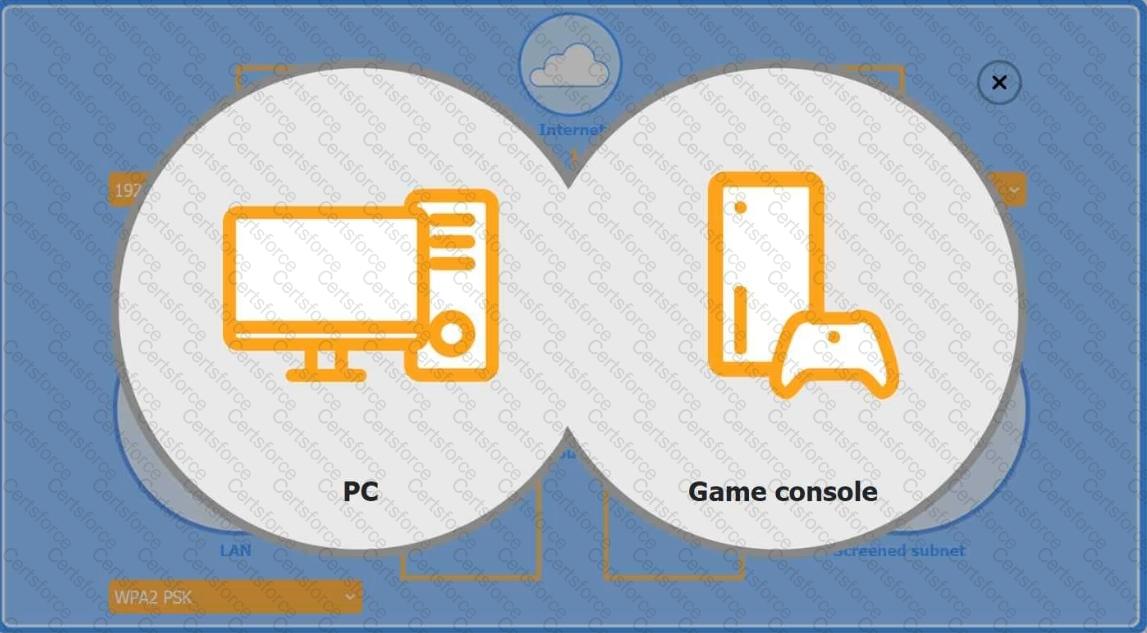
1. PC: place behind the router (where the port-forward rule points).
2. Game console: place on the Wireless AP (so it can use chat and extra services over WPA2 PSK).
3. Firewall: place in front of the screened subnet (with its 10.100.0.1 IP facing that subnet).
The Windows PC is placed in the screened subnet (behind the firewall) for enhanced security. Remote access to this PC requires port forwarding of TCP port 3389 (RDP), which is correctly configured through the router.
The Game Console is placed on the Wireless AP LAN, using WPA2 PSK for a secure wireless connection. Game consoles typically use peer-to-peer chat and online services that require open access without firewall restrictions, which is why the console is not placed behind the firewall.
CompTIA A+ 220-1102 Reference Points:
Objective 3.4: Given a scenario, implement best practices associated with data and device security.
Objective 2.4: Given a scenario, use appropriate tools to support and configure network settings.
Study Guide Reference: CompTIA A+ Core 2 guides recommend using screened subnets (a type of DMZ) for systems needing controlled external access, such as remote desktops, while placing gaming and media devices on less restricted networks for full functionality.


Submit