The requirement is to configure the system so that sales discounts are visible and tracked correctly in Dynamics 365 Business Central.
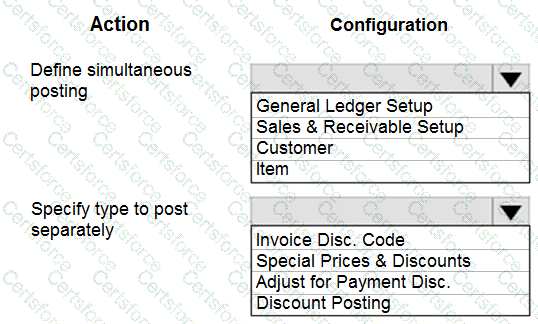
Define simultaneous posting → General Ledger Setup
In Business Central, the General Ledger Setup page contains fields that control whether discounts are posted separately or combined with sales postings.
By defining discount posting behavior at the General Ledger Setup level, you ensure consistency across all sales transactions and financial reporting.
Other options (Sales & Receivable Setup, Customer, Item) do not define global simultaneous posting behavior for discounts; they control transaction processing but not the separation of discount postings.
Specify type to post separately → Discount Posting
To show sales discounts separately, you must enable Discount Posting.
This ensures discounts are posted to a dedicated G/L account, rather than being netted off directly against sales.
As a result, financial statements can show both gross sales and discounts given, which is critical for profitability analysis and discount tracking.
The other options in the list:
Invoice Disc. Code → Used to define specific invoice discounts, but not to enforce posting separately.
Special Prices & Discounts → Controls pricing rules but not posting behavior.
Adjust for Payment Disc. → Manages how payment discounts affect invoices, but again, not posting visibility.
With this setup, Wide World Importers can track gross sales, discounts, and net sales transparently in reports, allowing management to analyze the financial impact of discounts.
Microsoft References
General Ledger Setup in Business Central
Discount Posting Field (Post Discounts Separately)
Work with Sales Discounts in Business Central
Correct Answer:
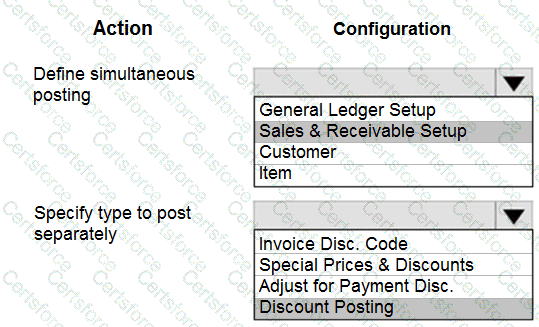
Define simultaneous posting: General Ledger Setup
Specify type to post separately: Discount Posting
Contribute your Thoughts:
Chosen Answer:
This is a voting comment (?). You can switch to a simple comment. It is better to Upvote an existing comment if you don't have anything to add.


Submit