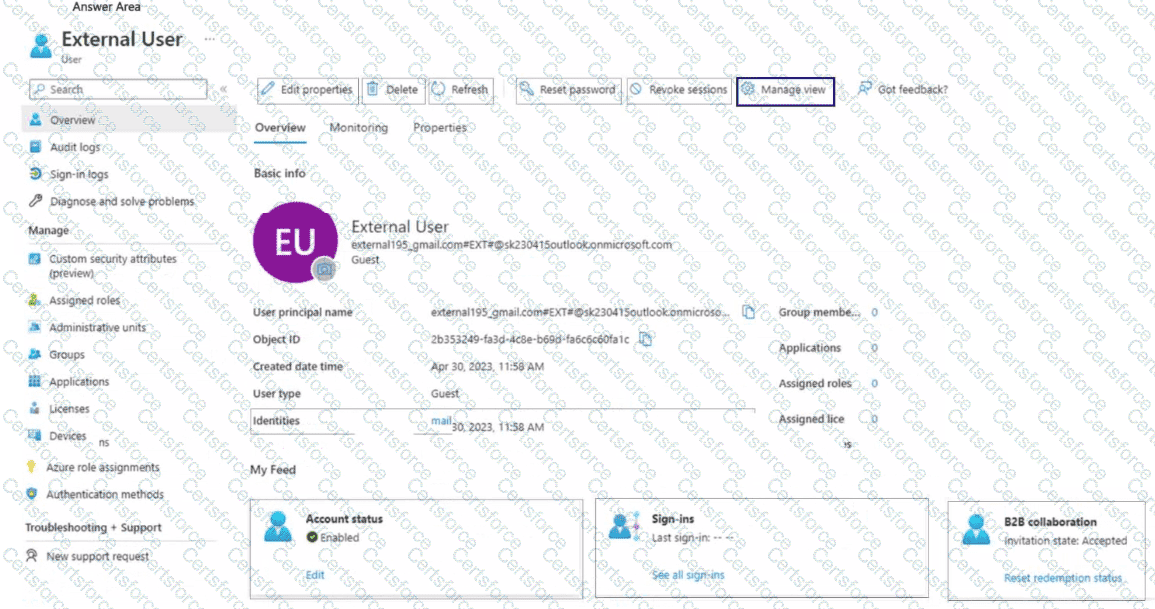
In Microsoft Entra ID (formerly Azure Active Directory), guest users (External Users) are typically added via B2B collaboration invitations. They authenticate using the identity provider (IdP) associated with the email they were invited with — such as a Microsoft account, Gmail (Google), or another organization’s Azure AD tenant.
When you need to change the authentication method or identity for a guest user — for example, from external195@gmail.com to contractor@gmail.com — you must modify their identities and ensure that their account status is enabled and synchronized with the new sign-in identity.
Step-by-step from Microsoft Documentation:
From Microsoft Learn – “Manage external collaboration settings in Microsoft Entra ID” and “Manage guest accounts in Azure AD”:
Identities
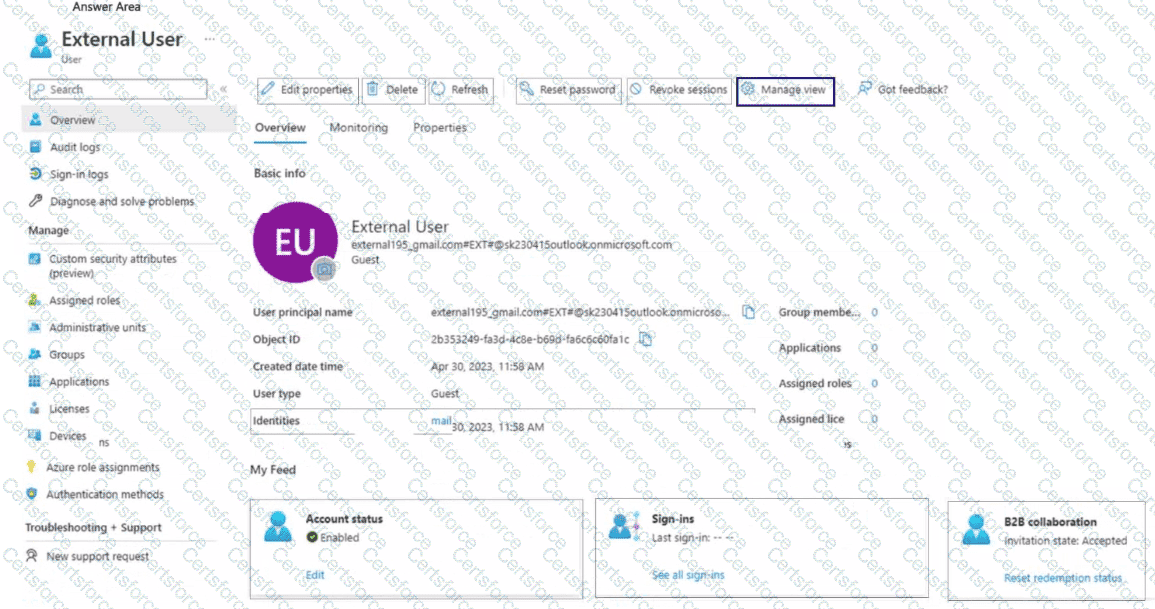
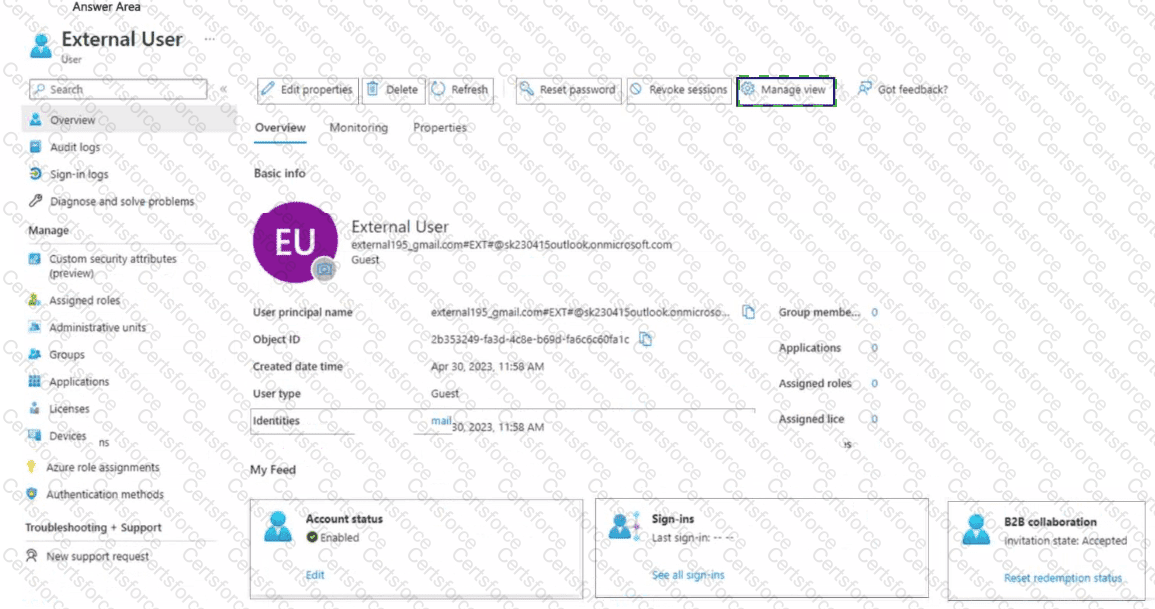
Under the Overview blade of the user, the Identities section lists all linked sign-in identities for that account.
You can remove the old identity (e.g., external195@gmail.com) and add the new one (contractor@gmail.com) as an alternate identity or replace the existing one.
This determines which external account the guest uses to authenticate to your tenant.
Account status
Once the new identity is added, ensure the Account status remains Enabled so that the user can sign in successfully.
If disabled, the user cannot authenticate even with the new email address.
This setting controls whether the guest user object is active in the directory.
Other fields such as User principal name, Object ID, or Reset password cannot directly modify the external identity since guest authentication relies on the federated identity provider of the external email domain.
Therefore, the administrator must use Identities to register or replace the authentication address, and Account status to ensure the user can log in using the new account.


Submit