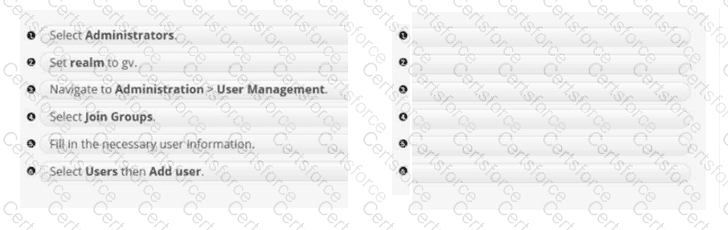
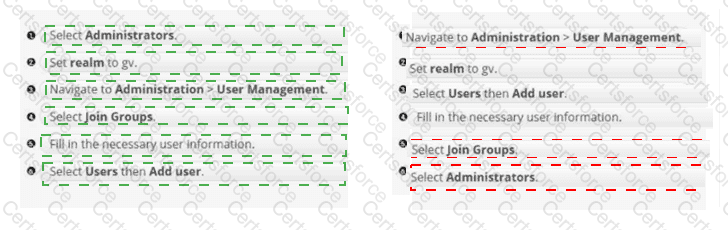
Correct order: 3 → 2 → 6 → 5 → 4 → 1
Navigate to Administration > User Management .
Set realm to gv .
Select Users , then Add user .
Fill in the necessary user information.
Select Join Groups .
Select Administrators .
Forcepoint DSPM user administration for a standalone deployment is performed through the Keycloak-based user management workflow. The sequence begins by entering the DSPM administration area and opening User Management , which places the administrator in the identity-management context used to control DSPM UI access. The next critical step is selecting the gv realm. Forcepoint documentation specifically instructs administrators to select the gv realm after logging into Keycloak and warns against changing settings in the Master realm, because the DSPM application authorization model is tied to the gv realm rather than the default administrative realm.
After the correct realm is active, the administrator creates the account by selecting Users , choosing Add user , and entering required identity fields such as username, email, first name, and last name. Once the user object exists, access is completed through RBAC group membership. Forcepoint’s RBAC guidance recommends group-based role assignment: navigate to the user, open the Groups area, search/select the appropriate group, and click Join . Selecting Administrators grants the required administrative group membership and resulting DSPM access.


Submit