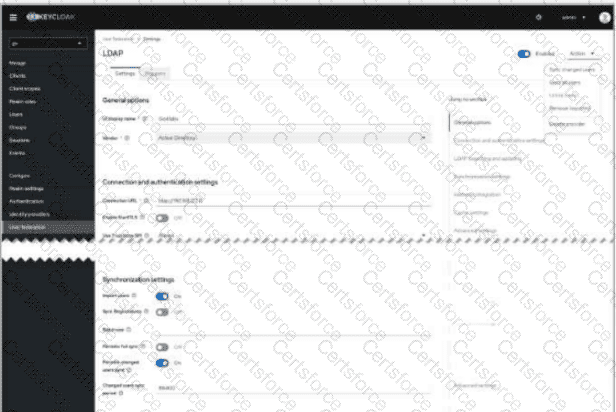
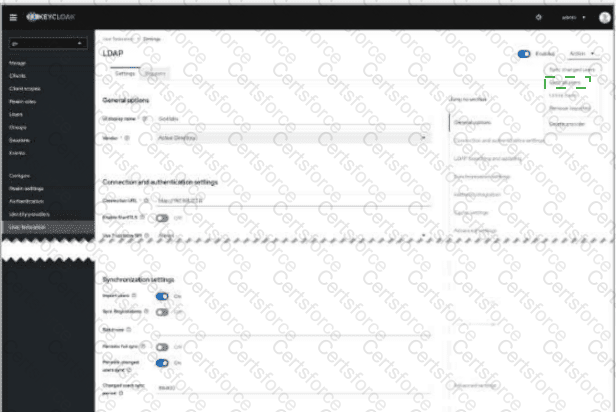
Select the Actions drop-down in the upper-right corner of the LDAP provider screen, then choose Sync all users or Sync changed users .
Manual synchronization is initiated from the LDAP provider configuration page inside Keycloak User Federation, not from the general DSPM dashboard or from the Users page. The correct UI location is the Actions menu at the upper-right of the LDAP provider screen. In the screenshot, this is the open drop-down containing options such as Sync all users , Sync changed users , Unlink users , and Remove imported . To force synchronization after a successful connection test, choose Sync all users for a full import or Sync changed users when only deltas are required.
Forcepoint DSPM uses Keycloak for Active Directory import. The official DSPM documentation states that AD users are added through Keycloak , with administrators selecting the gv realm, navigating to User Federation , and adding/configuring an LDAP provider. It also identifies synchronization settings such as Import users , Periodic full sync , and Periodic changed users sync as the mechanisms used to bring LDAP users into Keycloak and then into DSPM.
Therefore, the click target is the upper-right Actions drop-down on the LDAP provider page , specifically the sync command within that menu. References/topics: User Federation, LDAP Provider, Active Directory Import, Keycloak gv Realm, Synchronization Settings .


Submit