To integrate NSX Manager with LDAP to better control NSX administrators’ roles and responsibilities, you need to follow these steps:
Log in to the NSX Manager UI with admin credentials. The default URL is https:// .
Navigate to System > User Management > LDAP and click Add Identity Source.
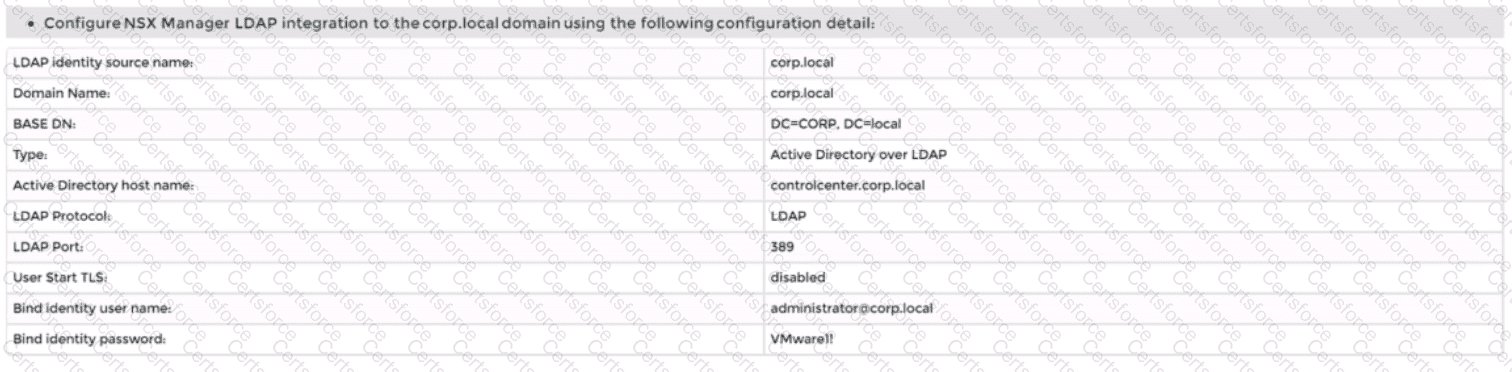
Enter a name for the identity source, such as corp.local.
Enter the domain name of your Active Directory server, such as DC=corp,DC=local.
Select Active Directory over LDAP as the type from the drop-down menu.
Click Set to configure LDAP servers. You can add up to three LDAP servers for failover support, to each domain.
Enter the hostname or IP address of your LDAP server, such as corpdcserver.corp.local.
Select LDAP as the protocol from the drop-down menu.
Enter the port number for the LDAP server, such as 389.
Click Connection Status to test the connection to the LDAP server. If successful, you will see a green check mark and a message saying “Connection successful”.
Optionally, you can enable StartTLS to use encryption for the LDAP connection. To do this, toggle the Use StartTLS button and enter the certificate of the LDAP server in PEM format in the text box below.
Click Save to add the LDAP server.
Repeat steps 6 to 12 to add more LDAP servers if needed.
Enter the bind entry user name and password for the LDAP server, such as Administrator@corp.local and VMware1!.
Click Save to create the identity source.
Navigate to System > User Management > Users and Roles and click Add Role Assignment for LDAP.
Select corp.local as the domain from the drop-down menu.
Enter nsx-admin@corp.local in the search box and select it from the list that appears.
Select Enterprise Admin as the role from the drop-down menu.
Click Save to assign the role to the user.
You have successfully integrated NSX Manager with LDAP and configured nsx-admin@corp.local Active Directory account as an Enterprise Admin access role.


Submit