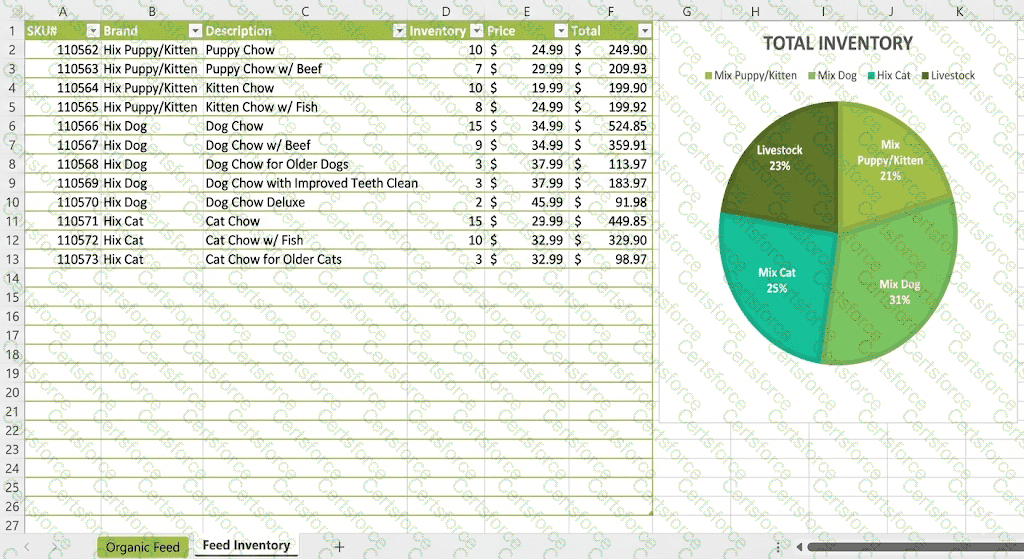
To completeTask 1: Remove the conditional formatting from the table on the Feed Inventory worksheet, follow these steps:
Step 1: Select the Target Worksheet
First, ensure you are on the correct worksheet as specified in the instructions.
Step 2: Select the Table or Data Range
You can remove formatting from the entire sheet, but to be precise with the "table," follow these sub-steps:
Click anywhere inside the table (the area containing the SKU#, Brand, Description, etc.).
PressCtrl + Ato select the entire table range.
Step 3: Access the Conditional Formatting Menu
Go to theHometab on the top Ribbon.
In theStylesgroup, click on theConditional Formattingbutton.
Step 4: Clear the Rules
Hover your mouse overClear Rulesnear the bottom of the drop-down menu.
A side menu will appear. SelectClear Rules from Selected Cells(if you have the table selected) orClear Rules from Entire Sheetto ensure all formatting is removed.
Final Result
Once clicked, any data bars, color scales, or highlight rules (like the light green shading seen in your screenshot) that were applied via Conditional Formatting will be removed, leaving the standard table styling


Submit