Comprehensive Detailed Explanation
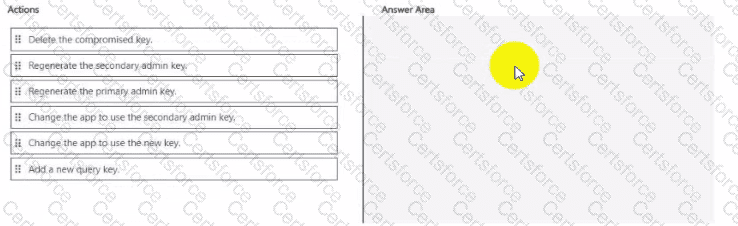
You are dealing with Azure AI Search (formerly Azure Cognitive Search). The issue is that the query key is compromised, and you need to ensure minimal downtime while keeping users with read-only access.
Azure AI Search uses two types of keys:
Admin keys (full control – manage indexes, data sources, etc.)
Query keys (read-only access for client applications)
If a query key is compromised, the remediation must be safe and fast, without breaking the application unnecessarily.
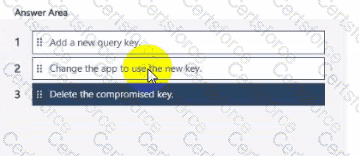
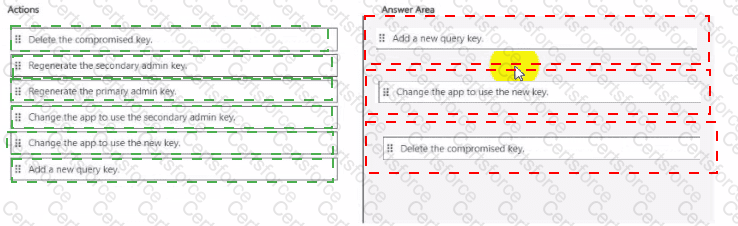
Step 1 – Add a new query key
Instead of immediately deleting the compromised key, first generate a new query key in the Azure portal or via API. This ensures you have a replacement ready before cutting off the old key.
Step 2 – Change the app to use the new key
Update your web app configuration (for example, connection strings or environment variables) so that it authenticates against Azure AI Search using the newly created query key. This step ensures a smooth transition with minimal downtime.
Step 3 – Delete the compromised key
Finally, once your app is verified to work with the new query key, remove the old compromised key to prevent any further unauthorized access.
Correct Order:
Add a new query key.
Change the app to use the new key.
Delete the compromised key.
Microsoft References
Manage admin and query keys in Azure AI Search
Best practices for key management


Submit